At some point my tab bar stopped showing titles. Just a row of favicons, then a row of identical little slivers, then a row of nothing. I had so many tabs open that I could not tell what was in them, which is a funny thing to say about a list of things you opened on purpose.
This is the story of why that happened, why nothing I tried fixed it, and why I ended up building a Chrome extension about it. The first version is out. It is called Tab Closet.
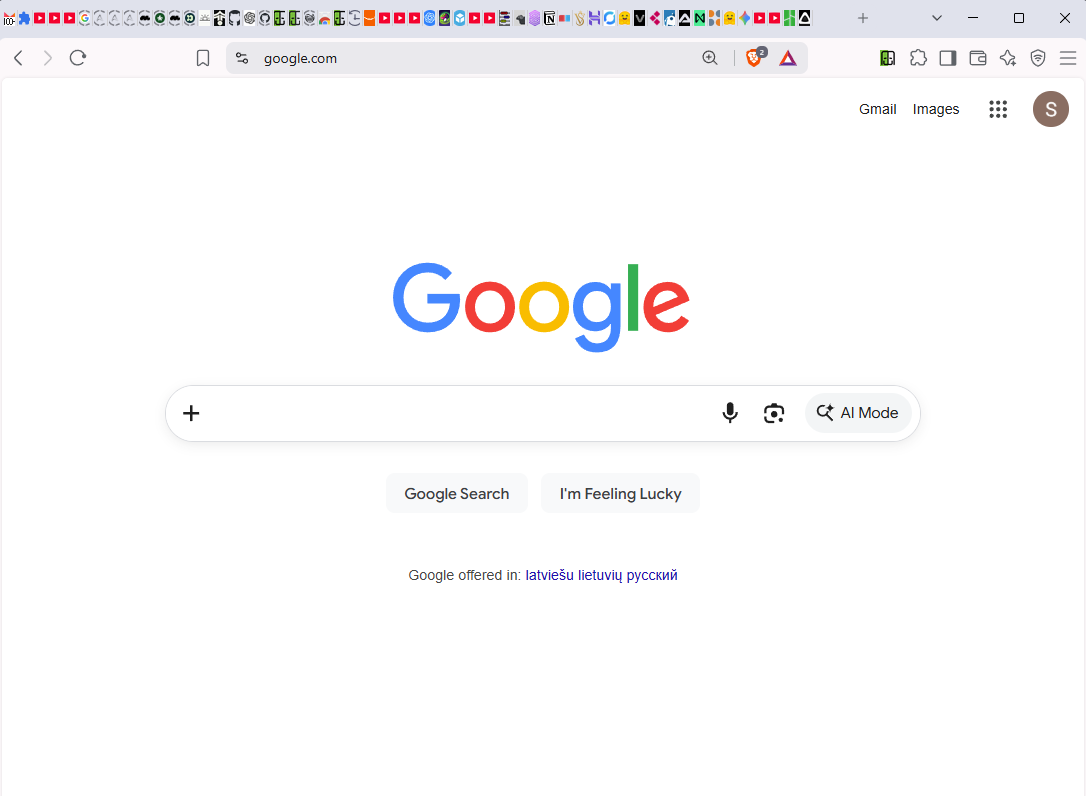
The "before". Every one of these was important at some point.
How I got to a hundred tabs
It was never one big session. It was every project and every bit of research. I start something, I open a link, that link has three more links, one of those is really good, and now there are eleven tabs about one question. Then the next question. By the end of a week there are tabs from four different rabbit holes sitting next to each other, and I have no idea which ones I still need.
I kept them open because each one felt unfinished. Closing a tab felt like throwing away a thought I had not gotten back to yet. Not a great reason. Still the reason.
The other half of the problem is that I did not want to organize anything. I was not going to make bookmark folders. I was not going to name tab groups. If tidying up takes effort, I am going to skip it, and then I am back at a hundred tabs.
What I tried before this
None of these are bad tools. They just did not solve my specific problem.
- History. It has everything, which is the problem. Thousands of entries with no shape to them. Finding one page from last Tuesday means remembering its title.
- Bookmarks. You have to decide where each one goes, and one day you have to clean the whole thing up. That is exactly the work I was trying to avoid.
- Saved tab groups. Nice, but only for tabs you grouped by hand first.
- Session savers. These came closest. One click, everything gone, nothing lost. I used them for a long time. The catch showed up later: when I wanted one website back, I had to reopen the whole session, thirty tabs at once, and then click around to find the one I meant. Every session was a sealed box. To look inside, you had to open the box.
So what I actually wanted was: close everything with one click, lose nothing, and when I need one page later, find it by searching, without reopening anything I do not need.
So I built the thing
Tab Closet closes tabs only after it has saved them into a searchable vault that lives in your browser. Clean closes every tab you have not looked at in a while (24 hours by default, you can change it). Superclean closes every unpinned tab when you want a full reset. Either way, the closed tabs get sorted into named folders, and each one gets a one-line description so you can find it even if the page title was useless. You reopen one tab with a click, or a whole folder as a Chrome tab group.
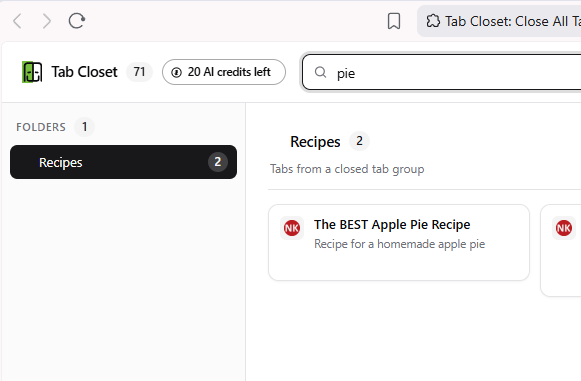
Press / and type. This is the part session savers could not do for me: one page back, not thirty.
A few decisions I care about
Save first, then close
A tab closes only after its record has been written to the vault. Not at the same time, not "probably saved". If saving fails, the tab stays open. This sounds obvious, but the whole point of the extension is that you can press the button without thinking, and you cannot do that unless you trust it completely.
Do not close the tab I am using
Clean skips pinned tabs, the tab you are looking at in each window, and anything that is not a normal web page (settings, the Web Store, other extensions). Superclean asks you to click twice, because one click is how you lose an afternoon of research to a stray tap.
Organizing happens to me, not by me
This was the non-negotiable one. I do not name folders. Tab Closet does. By default it asks an AI model to sort the closed tabs into folders and write the descriptions. Turn AI off and it still groups tabs by how similar their content is, just without the written summaries. Either way I never have to decide where something goes.
Everything stays in the browser
There is no account and no sync. The vault, folders, notes and screenshots live in your browser profile. When AI naming is on, the only thing that leaves your computer is each tab's title, address and meta description, plus your existing folder names, so the model can sort into them. No page contents, no screenshots, no history. The privacy page has the full list.
Restoring is part of the workflow, not an emergency
This is the loop I ended up living in:
- Tabs pile up. Clean files them into folders.
- Later, I reopen one folder as a Chrome tab group and work in it.
- When I am done, I close the group, and the tabs go straight back into that folder.
Folders in the vault and tab groups in Chrome are the same thing in two places. That turned out to be the feature I use most, and I did not plan it. It fell out of the save-first idea.
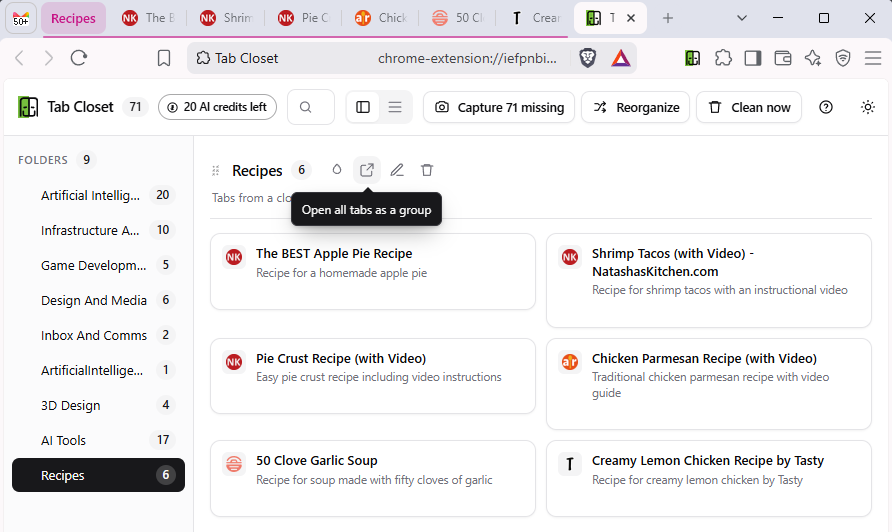
A folder in the vault and a tab group in Chrome. Same thing, two places.
What is in v1
- Clean for tabs you have stopped using, with a threshold you set
- Superclean for a full reset, everything unpinned
- Send to Tab Closet from the right-click menu, for one tab or a selection
- A searchable local vault. Press / and type. It matches titles, addresses, descriptions and folder names.
- Restore a folder as a Chrome tab group, and close the group to send it back
- Automatic folder names and tab descriptions
- Local grouping when AI is off
- Screenshot previews, on demand, so a clean never has to load every page
- Works on Chrome and Brave
What it does not do (yet, or ever)
- It saves the page, not the moment. A restored tab loads fresh. Half-filled forms and scroll position are gone. A page behind a login may ask you to sign in again.
- The vault is tied to your browser profile. Remove the extension, clear browsing data, or lose the profile, and the archive goes with it.
- It is not a backup. Anything you genuinely cannot lose still belongs in a bookmark or an export too. I mean that.
- It does not sync. Your vault on one PC has no idea about your vault on another. See below.
What is next
v1 covers the loop I needed most: close everything, lose nothing, find it again. It has been my daily driver for a while now and it does the job.
The one thing I already know I want is backup and transfer. Export the whole vault to a file, import it on another machine. Right now the archive lives and dies with one browser profile, and I want to move it to a new PC without losing years of "I'll get back to this". That is the next thing I build.
Beyond that I am honestly not sure. I would rather watch where the loop breaks for people other than me before deciding what belongs in v1.1. If something annoys you, the support form goes to a person, and that person is me.
Two ways to go from here
- Want to see the workflow step by step? Read the guide on closing Chrome tabs without losing them. It also covers what Chrome and Brave can do on their own, in case you do not need an extension at all.
- Want to try it? Install Tab Closet from the Chrome Web Store. It is free, there is no sign-up, and the first clean takes about ten seconds.