
OneTab gets a crowded tab bar out of your way. The harder part comes a week later, when you need one of those pages and have to remember which group you put it in.
Tab Closet is worth a look if you want help with that sorting, or want to clear old tabs while keeping today's work open. But OneTab has folders and search too. Switching just to get those features would miss the point.
We make Tab Closet. This guide compares the everyday jobs, shows OneTab's current interface, and walks through a small, reversible way to try an alternative. The OneTab screenshots below are credited examples from its official help page, not claims of our own hands-on testing.
OneTab vs Tab Closet at a glance
| The jobOneTabTab Closet | ||
| Put tabs away | Save the current window or selected tabs into groups. | Use Clean for idle tabs, or send selected tabs to the vault. |
| Find them later | Search, folders, stars and a quick list. | Searchable folders, automatic grouping and optional AI descriptions. |
| Take links elsewhere | Import/export and share a group as a web page. | No OneTab importer, vault export or shared web lists at present. |
The useful distinction: OneTab gives you tools to arrange saved lists. Tab Closet puts more of the initial filing into the cleanup step. If your lists are already easy to find, you may not need to move.
What OneTab already does well
OneTab turns open tabs into a saved list and lets you restore individual links or a whole group. Its current feature tour also shows search, folders, drag-and-drop organization and starred items. If you remember a much simpler OneTab, check the current version before deciding it is missing something.
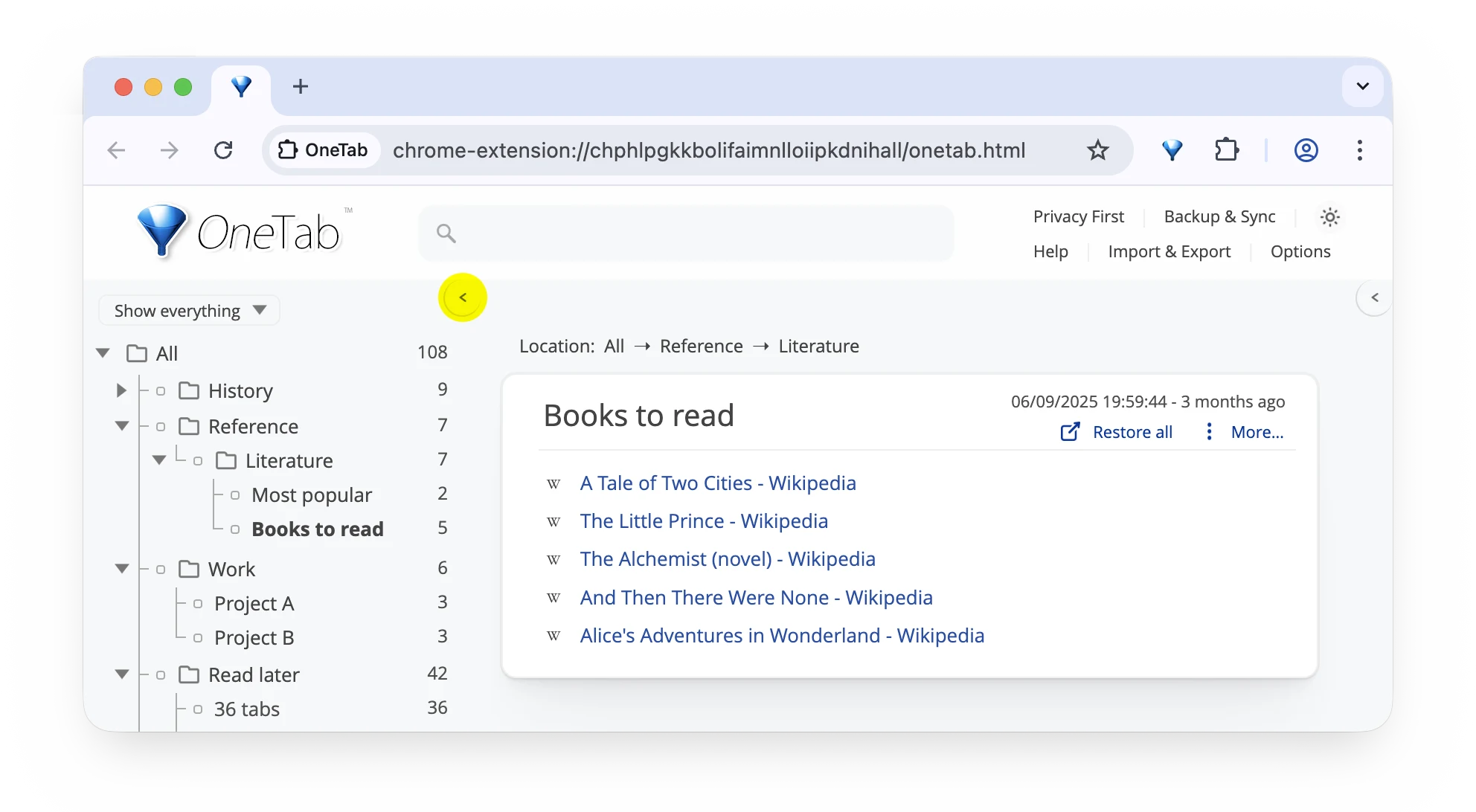
OneTab's own example: a reading list nested inside folders, with a Restore all control. Screenshot: OneTab Help.
That layout suits a project you already understand: a reading list, a few references, or links you want to hand to someone else. You choose the structure. OneTab's website also documents import and export, which matters if you want to keep a separate copy of your links.
Where Tab Closet does things differently
Clean up the tabs you stopped using
You can be finished with last week's shopping tabs and still need the document open beside them. Clean uses how long a tab has been idle to decide what to archive. The default is 24 hours, and you can change it in Options.
Clean protects pinned tabs and the active tab in each window. It saves the eligible pages into the vault before closing them. The popup shows the count first, so you can see what you are about to do.
Say you have a work document open alongside a pile of shopping tabs from the weekend. Clean gives you an age-based way to put the stale pages away. You do not have to decide that the entire window is finished.
For a bigger clear-out, Superclean closes unpinned tabs regardless of age. It asks for a second click to confirm. Save any unfinished forms first: reopening a link will not bring back what you were typing.
Spend less time deciding where a link belongs
Tab Closet files archived tabs into folders. With AI enabled, it can name those folders and write short descriptions for the tabs. The descriptions give search a little more to work with when a page title tells you very little.
AI is optional. Turn it off and local text grouping still works, without AI-written descriptions. The suggestions can be wrong, too. A folder name is a useful starting point, not a promise that software understood your entire project.
Search is useful in both apps
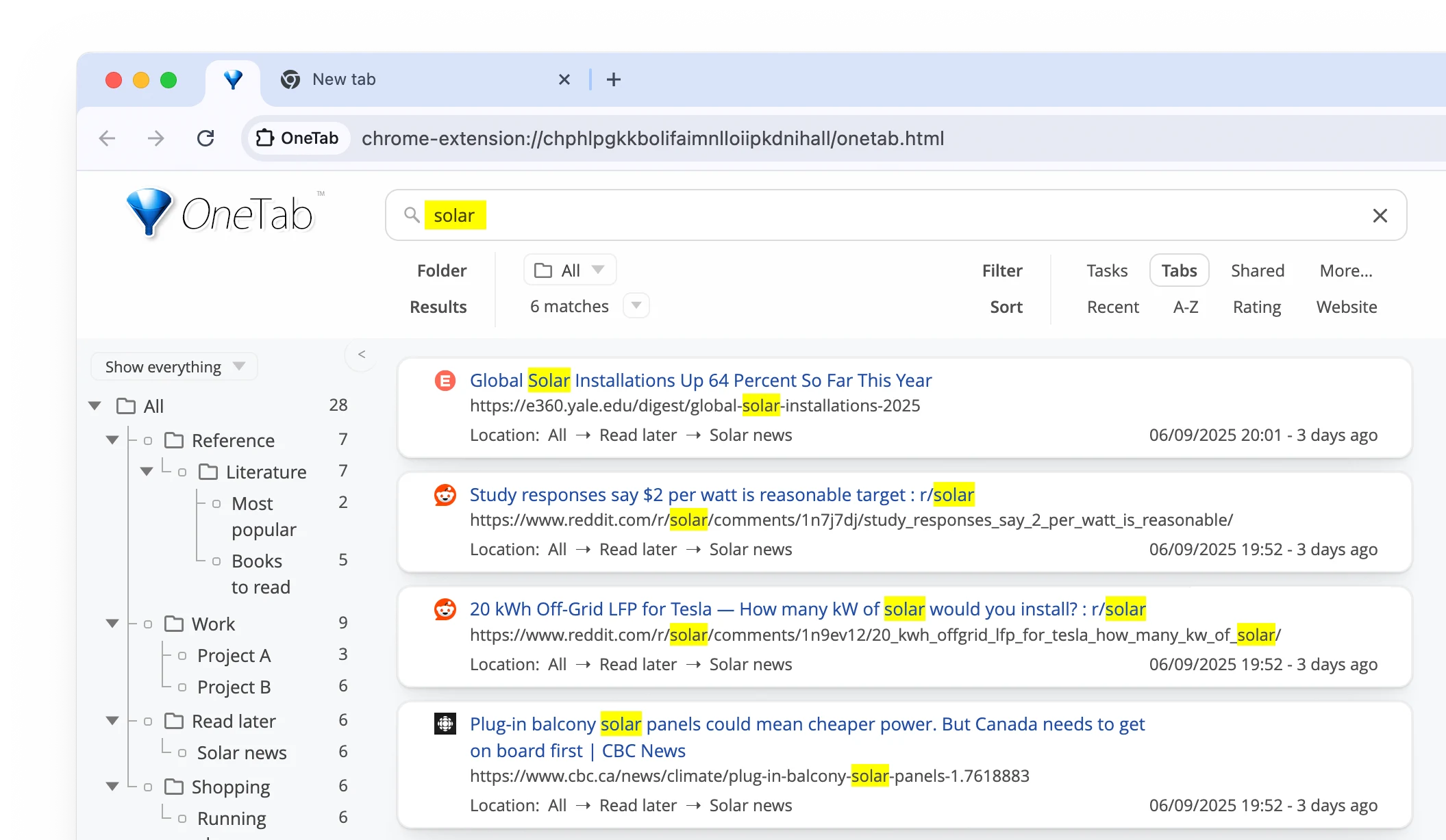
OneTab searching for "solar", with matching terms and folder locations visible. Screenshot: OneTab Help.
If your problem is finding a link, try OneTab's search before moving your archive. Its help page also documents an address-bar shortcut: type 11, press Space, then enter your search.
Tab Closet searches titles, addresses, descriptions and folder names. The extra value of its optional AI descriptions is context: a page with a vague title can get a more useful summary. That can help, but it is still worth checking the result rather than trusting every label.
Pick a project back up as a tab group
A folder in the vault can reopen as a named Chrome tab group. That is handy when "back to work" means a document, two references and a dashboard, rather than one page.
When you close that group, its tabs can return to the matching folder. You can also reopen just one saved tab. There is no need to bring the whole folder back for a quick look at a recipe.
Where sticking with OneTab makes sense
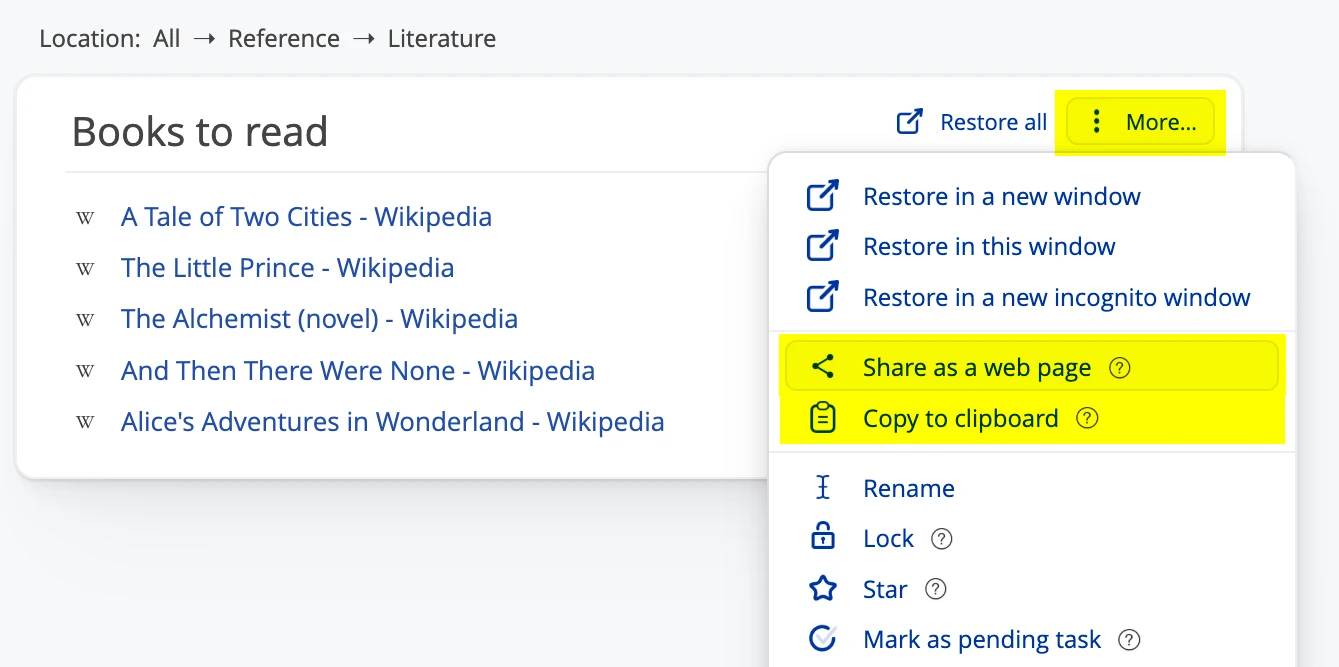
The group menu is useful when a set of links needs to leave your browser. Screenshot: OneTab Help.
If you regularly send reading lists to a colleague, OneTab's sharing and clipboard tools are a practical reason to stay. Tab Closet does not currently offer shared web lists or vault export. Automatic sorting would not replace those jobs.
Browser support matters as well. Tab Closet is built for Chrome and Brave. OneTab lists versions for Firefox, Edge and Safari as well as Chrome. If you are happy in Firefox, changing browsers just to change your tab manager is a fairly big ask.
Try Tab Closet without moving your whole OneTab archive
Start with a few ordinary web pages. Leave your old OneTab lists where they are while you decide whether the new workflow suits you.
- Keep a separate copy of your saved links. Open OneTab's Import & Export screen and save the exported text in a file you can find. Do this before removing an extension or changing browser profiles.
- Install Tab Closet in Chrome or Brave. Pin it to the toolbar so the popup is easy to reach. No account is needed.
- Reopen a small group from OneTab. Check that the pages you care about still load. A saved address cannot bring back a website that has disappeared.
- Send those tabs to Tab Closet. Select them in the tab strip, right-click the selection and choose Send to Tab Closet. There is no direct OneTab file import; this is a manual transfer of the pages you reopen.
- Check the result. Open Tabs from the popup, search for one of the pages and reopen it. Try opening its folder as a tab group, too.
A page link can make that trip. OneTab-specific notes, stars and folder structure should not be assumed to come with it. Keep the original archive until you have checked what you need. OneTab explicitly warns that uninstalling it deletes its stored tabs.
For the everyday Clean and Superclean steps, see how to close Chrome tabs without losing them.
Privacy, backups and the bits a tab saver cannot keep
Tab Closet's vault lives in your browser profile. There is no account or cross-device sync. Local storage is not a backup. Removing the extension or losing its storage can remove the archive. Keep irreplaceable links separately, for example as browser bookmarks.
With AI enabled, tab details are sent for processing. The privacy policy describes the title, URL, meta description and existing folder names involved, and how the hosted service uses OpenRouter. If you want grouping to stay on your computer, turn AI off in Options.
Restoring a tab loads its address again. It does not restore an unsent message, a half-filled form or the exact state of an app. Screenshots, when you choose to capture them, are visual reminders. They are not working offline copies of a page.
A few questions before you switch
Is Tab Closet a free OneTab alternative?
Yes. There is no subscription or account. The hosted AI features have an allowance; the free tier section explains it. You can use local grouping with AI turned off.
Does Tab Closet use less memory than OneTab?
We have not run a controlled comparison, so there is no percentage to promise. Closing pages can free resources in either workflow. How much depends on the pages, your browser and what stays open.
Should I switch if OneTab already works for me?
Probably not just for the sake of it. Try Tab Closet if the part you keep postponing is sorting tabs and clearing old ones away. Use it on a small project first. You will know fairly quickly whether it saves you effort or simply gives you another place to put links.
OneTab features and screenshots checked against its official website and help page on 5 September 2026. OneTab screenshots belong to their respective owner. We are not affiliated with OneTab.